Create and edit a listing
vantag.co/agent/p/[listing ID]/edit
Once created, you can edit everything from the content editor at any time.
Importing your listing
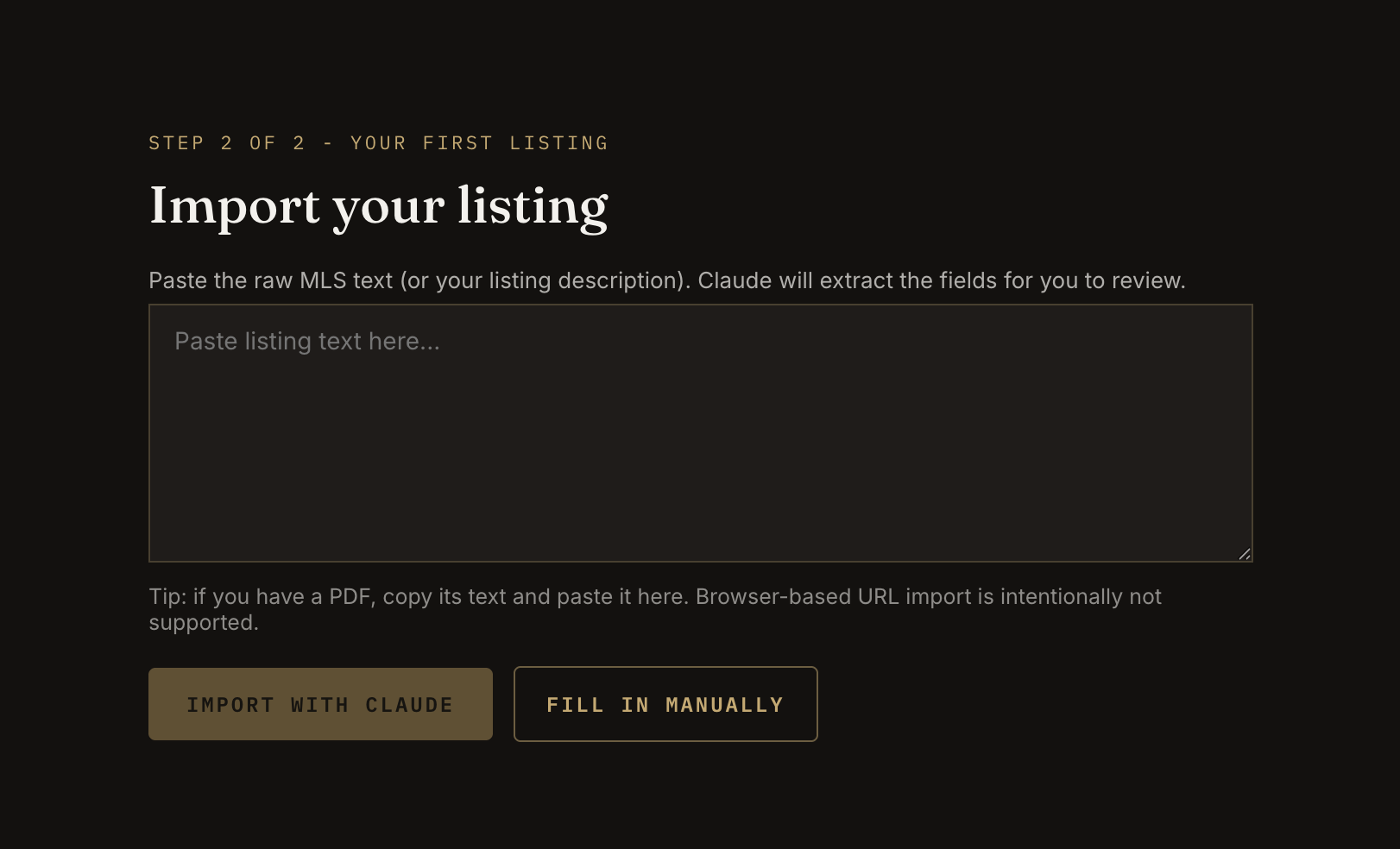
Import your listing
vantag.co/onboarding
Option A (paste and import) is currently in testing and will be available to all plans in an upcoming release.
Option B (fill in manually) is available now.
You have two options to load the property content:
Option A: Paste and import (fastest)
- Copy the full text of the property description (from your Multiple Listing Service (MLS), your marketing brief or any document).
- Paste it into the large text field.
- Click Import.
- Vantag reads the text with our AI and fills in the address, guide price, agency, agent name and property description for you.
- Review the details and adjust anything that is wrong.
- Click Create listing.
If you have a PDF, use a free service like CloudConvert to extract the text first, then paste it here.
Option B: Fill in manually
- Click Fill in manually.
- Type the address, guide price, agency and agent name directly.
- Click Create listing.
Editing your property
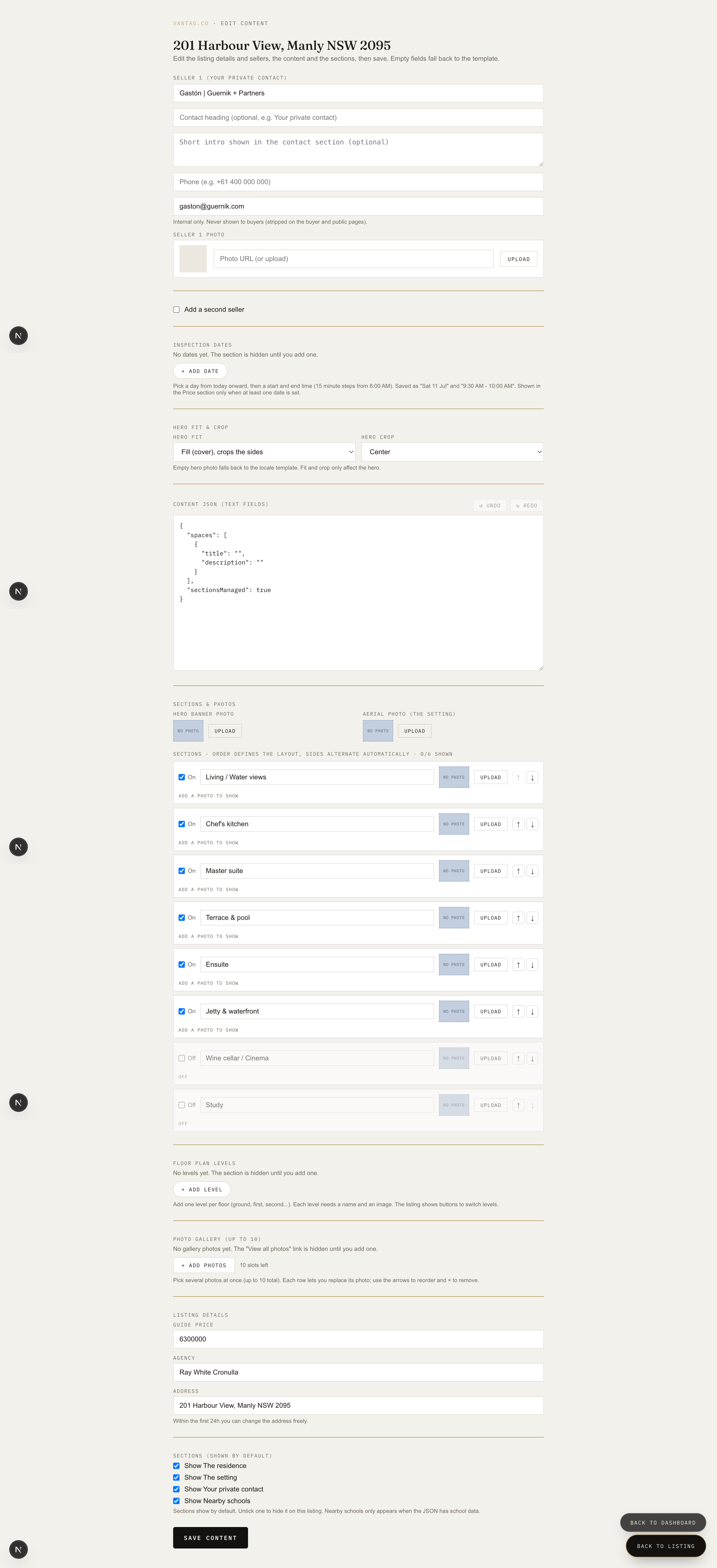
Editing the listing content
vantag.co/agent/p/[listing ID]/edit
Once the listing is created, you can edit everything from the content editor. The editor is organized in blocks:
1. Primary seller Your name, title, a short personal intro (shown to buyers), phone number and photo.
2. Second seller (optional) Tick the checkbox to add a second agent. Same fields as above.
3. Inspection dates Add one or more open home dates and times. Each row is one date. Click + Add date to add more.
4. Hero photo settings Choose how the main cover photo fits on screen (Cover or Full width) and how it is cropped (Centre, Top, Bottom, Left or Right).
5. Text content The main text fields for the listing: statement, property description, setting description, specs, inclusions and spaces. Edit directly in the text area.
6. Sections and photos This is where you manage the visual sections of the listing (see below).
7. Floor plan Upload floor plan images, one per level. Click + Add level to add more levels. Each level has a name and an image.
8. Photo gallery Upload up to 10 photos for the full gallery. Use + Add photos to upload several at once. You can reorder them with the up and down arrows.
9. Listing details Edit the guide price, agency name and property address.
10. Section visibility Four sections can be turned on or off: Residence, Setting, Agent contact, and Nearby schools. Untick any you do not want to show.
Click Save content when you are done. A confirmation message appears with links to preview both the agent view and the public page.
Managing sections and photos
The Sections and photos block is the most visual part of the editor. It controls the sections that make up the body of the listing.
The listing arrives with a set of example sections. These are just a starting point, not a fixed template. Vantag suits any property, not only waterfront homes: rename, reorder and switch sections on or off to fit exactly what you are selling.
Example sections (on by default):
- Living & water views
- Chef's kitchen
- Master suite & ensuite
- Waterfront terrace & pool
- Ensuite
- Jetty & boatshed
Example sections (off by default): 7. Wine cellar & cinema 8. Study
Every section is fully under your control. For any section you can:
- Rename it to suit the property. "Chef's kitchen" becomes "Entertainer's kitchen", "Jetty & boatshed" becomes "Private garden".
- Replace the photo at any time.
- Reorder sections using the up and down arrows to lead with what matters most for this property.
- Turn it on or off depending on what the property has.
- Add an aerial photo that appears full-bleed between sections for additional visual impact.
And here is the part worth knowing: none of this affects your buyer intelligence. Rename a section, swap its photo, change the order, and Vantag keeps giving you the same clear read on each buyer's genuine interest, with no extra setup.