Inviting buyers
vantag.co/dashboard/[listing ID]
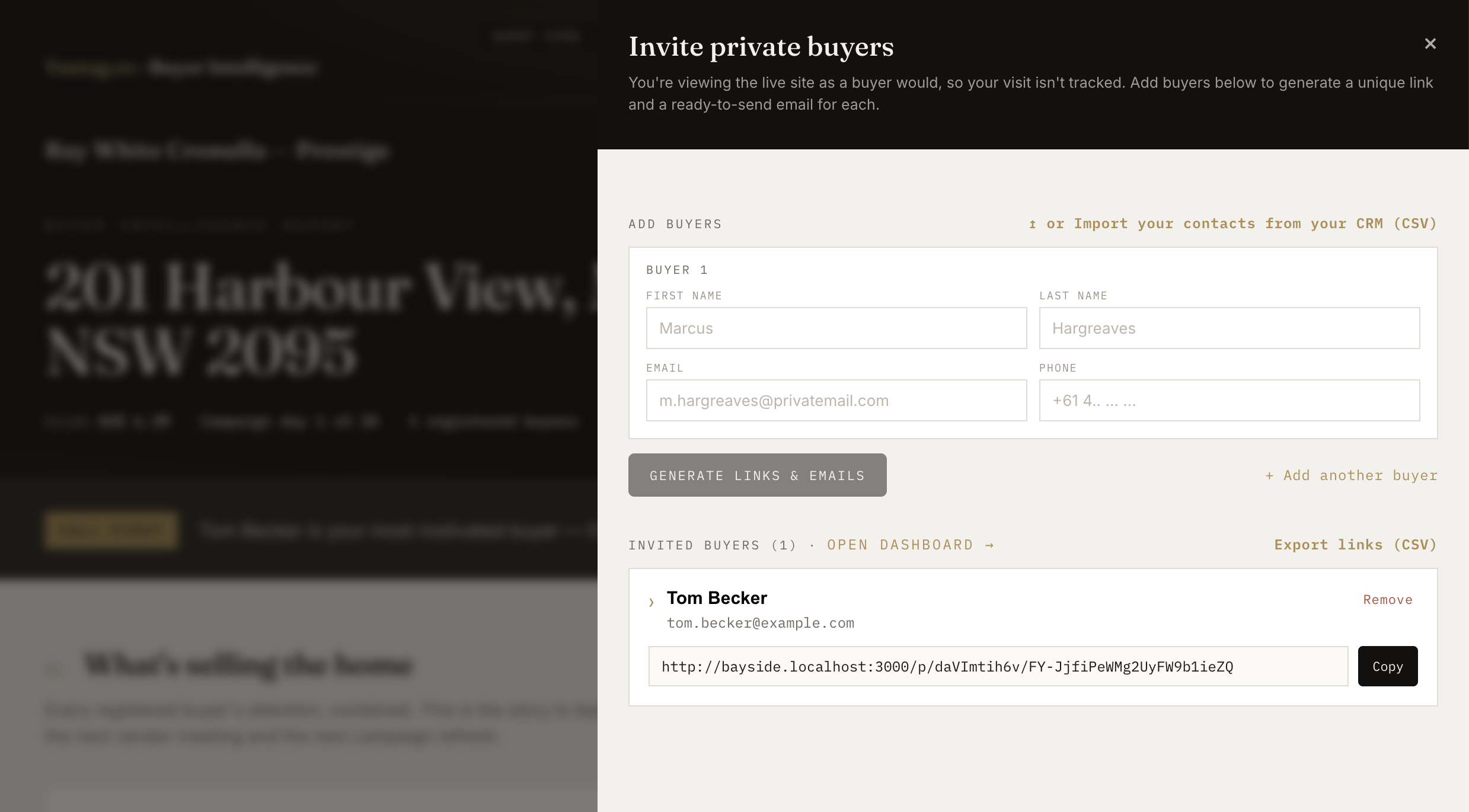
You invite and manage buyers from the dashboard. Open the dashboard for the listing and use the floating Invite buyers button to add buyers, generate their unique links and manage who has access.
The invite panel used to open from the listing view. It now lives on the dashboard, so buyer management and buyer intelligence sit together in one place.
Opening the invite panel
Look for the "Invite buyers" button in the bottom-right corner of the dashboard. It shows how many buyers you have already invited. Click it to open the invite panel.
Adding buyers one by one
Inside the panel, under Add buyers:
- Fill in the buyer's first name, last name, email and phone.
- Click Generate. Vantag creates a unique link for that buyer instantly.
- The buyer now appears in the Invited buyers list below, with their personal link ready to copy.
- Click Add another row to add the next buyer.

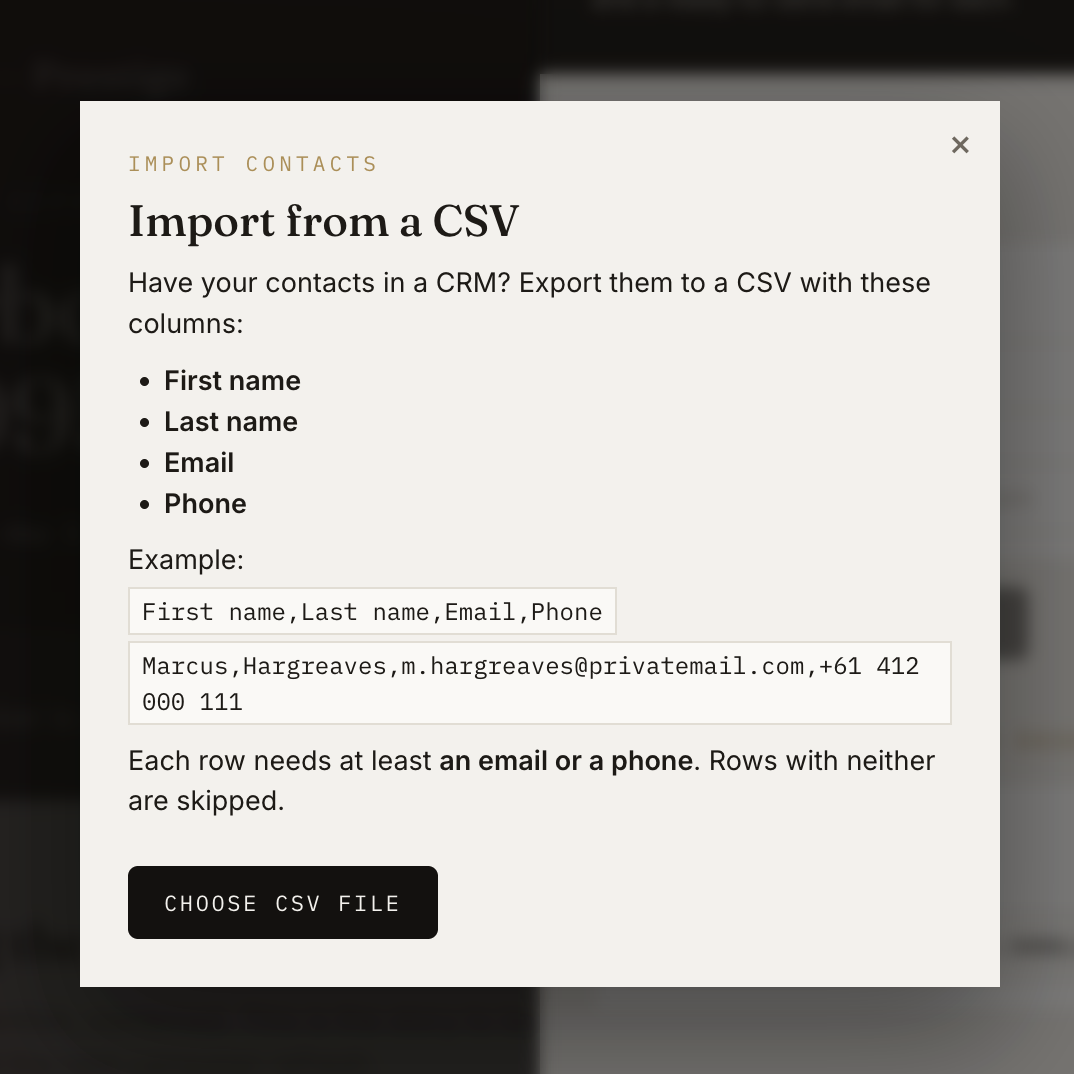
Importing buyers from a CSV file
If you have a list of buyers in a spreadsheet:
- Click Import from CSV inside the invite panel.
- Prepare your file with four columns: First name, Last name, Email, Phone.
- Upload the file. Vantag reads it and creates a unique link for every buyer in one go.
- All imported buyers appear in the Invited buyers list.
The invited buyers list
Once buyers are added, the panel shows each one with:
- Their name and contact details.
- Their unique link, a read-only field you can copy with one click.
- A suggested email, an editable draft personalised to that buyer. Add their unique link before sending.
- A remove button to delete the buyer from the list.
If you have more than six buyers, a search field appears so you can find anyone quickly. The list loads 25 at a time.
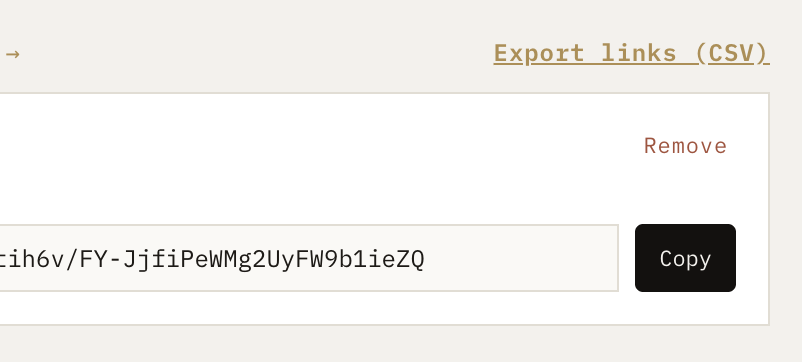
Exporting links to your CRM
Click Export links as CSV at the bottom of the panel. The file downloads with columns for first name, last name, email, phone, unique link and listing address, ready to import into your customer relationship management (CRM) platform.
Because every buyer has their own link, every visit to the listing has a name. You always know who is engaging with the listing and how genuinely interested they are.